FREE
Schedule your Mac display to sleep and wake
Display Schedule puts your displays to sleep and wakes them at times you set, on the weekdays you choose, with no clicking in between. It is included in the free download.
Get Phosphor for Mac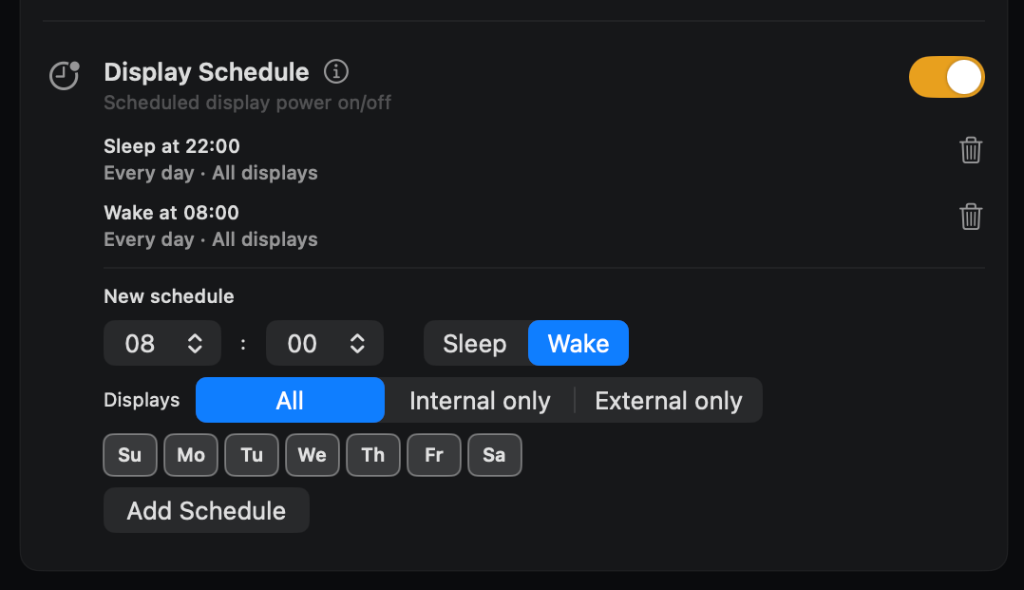
How to turn it on
Use the Display Schedule toggle in the menu bar, or the toggle on its card on the Features tab. Add schedules with the Add Schedule button on the card.
What you can change
- Time: any hour from 00 to 23, with minutes of 00, 15, 30 or 45.
- Action: Sleep or Wake.
- Displays: All, Internal only or External only.
- Days: weekday buttons, with at least one required.
- Up to 10 schedules. Schedules are saved.
Hotkey
None. Display Schedule is controlled from the menu bar and its card.
Permissions
None.
Good to know
- The master switch is not saved. It is on at every launch, and turning it off wakes all displays.
- After your Mac wakes from system sleep, the next event is worked out again.
- A click anywhere while a display is asleep on schedule wakes it.
- A display that cannot be put to sleep through the system is set to zero brightness with a full black overlay instead, and its brightness is restored on wake.
- A Sleep schedule with no Wake leaves the display asleep until you click, turn the switch off, or a Wake runs.
- Each schedule targets all displays, only the built-in display, or only external displays.
Phosphor for Mac is free to download. Add Pro when you want it.
Download or get Pro