FREE
Adjust temperature, contrast and gamma on your Mac
Color Grading gives you three controls over how your displays render color, plus saved presets to switch between them. It is part of the free tier.
Get Phosphor for Mac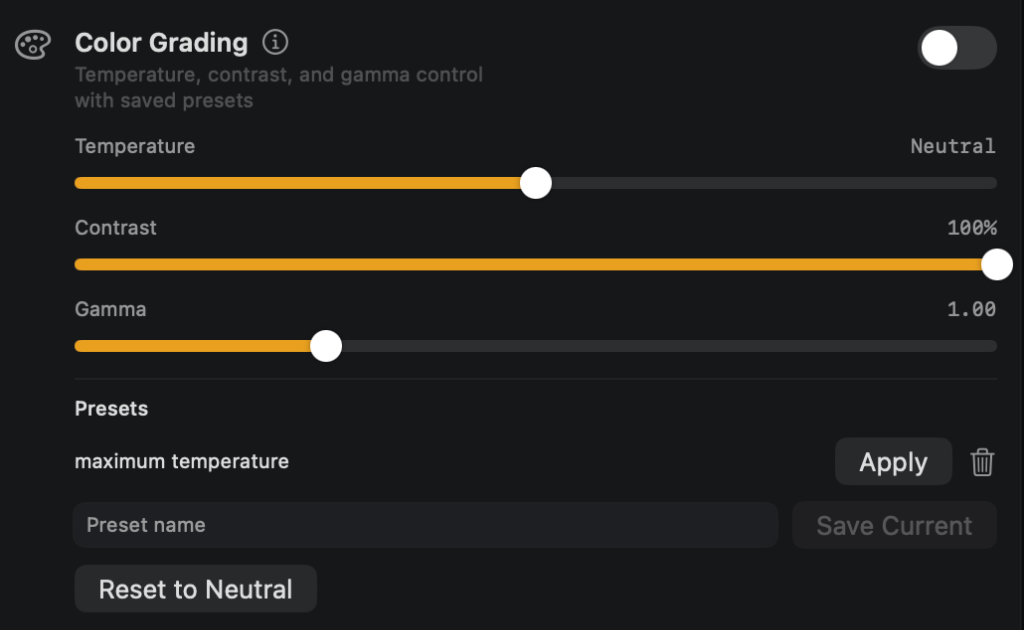
How to turn it on
Use the Color Grading toggle on its card on the Features tab. It is not in the menu bar, and it is off by default.
What you can change
- Temperature: -1 to +1, shown as Neutral, Warm or Cool with a number. The default is 0.
- Contrast: 0 to 100%. The default is 100%.
- Gamma: 0.40 to 2.60. The default is 1.00.
- Presets: type a name and choose Save Current, then Apply it later or remove it. You can keep up to 10.
- Reset to Neutral puts all three controls back to their defaults.
Hotkey
None for Color Grading itself. The emergency reset, Control+Option+Command+Shift+Escape, clears every overlay and restores normal color.
Permissions
None.
Good to know
- It is a software adjustment. Phosphor changes the system display color table, not settings inside the display itself.
- Temperature warms by lowering blue and cools by lowering red, by up to 30%.
- Contrast narrows the black and white ends only. It is not an S-curve, and there are no separate red, green or blue sliders.
- It applies to every active display, built-in and external.
- Slider values and presets are saved. The on or off state is not, and display color is reset when Phosphor quits, so it never relaunches into a tinted screen.
Phosphor for Mac is free to download. Add Pro when you want it.
Download or get Pro