Switch display settings on Mac with a shortcut
Display Presets saves a screen setup under a name and brings it back with one keystroke, so changing resolution or refresh rate no longer means a trip through System Settings. It is one of the free tools.
Get Phosphor for Mac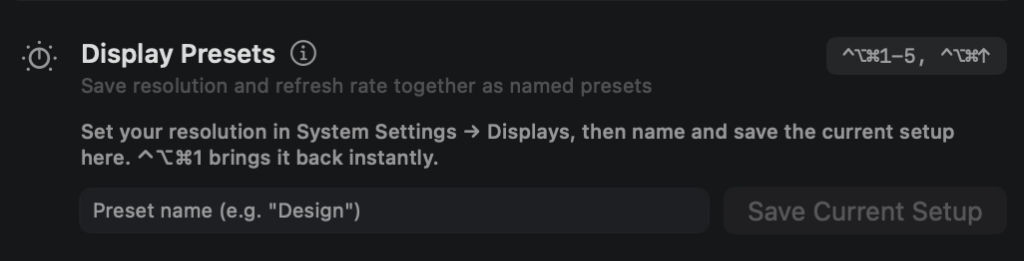

How to turn it on
There is no toggle. Open the Display Presets card on the Features tab, type a name, and press Save Current Setup. Once a preset is saved, its hotkey works.
The menu bar popover also shows a refresh-rate picker when your display supports more than one rate.
What you can change
- Up to 5 presets for each display.
- Each preset saves a name, a width, a height and a refresh rate, all taken from the display's current mode when you press Save Current Setup.
- The list shows every preset's hotkey, name, and its size and refresh rate in hertz.
- A Remove button on each preset deletes it.
Hotkey
Control+Option+Command+1 to 5 apply presets 1 to 5, and Control+Option+Command+Up Arrow cycles to the next preset and wraps around. These hotkeys are fixed, and the app has no screen for changing them. A hotkey for an empty slot does nothing.
Permissions
None.
Good to know
- The hotkeys act on the display under the cursor.
- The preset editor saves only for your Mac's built-in display. If no built-in display is active, for example when the lid is closed, the card says so.
- Applying a preset needs a mode with the same width, height and refresh rate on that display. If there is none, nothing changes.
- The change is permanent, so it survives a restart.
- Presets are kept in this Mac's app settings and are not sent anywhere.
Phosphor for Mac is free to download. Add Pro when you want it.
Download or get Pro